
In order to use Amazon Alexa to control your smart device and perform voice control, please make sure you have logged in to your "Surplife" App account.
Please refer to the following two binding methods:
Method 1: After adding the device, jump to the quick pop-up window to bind to Alexa
1. Make sure you have authorized the Bluetooth and location permissions of your mobile phone to the App,
2. Enter the "Add Device" interface to search for the device and add your device to the App,
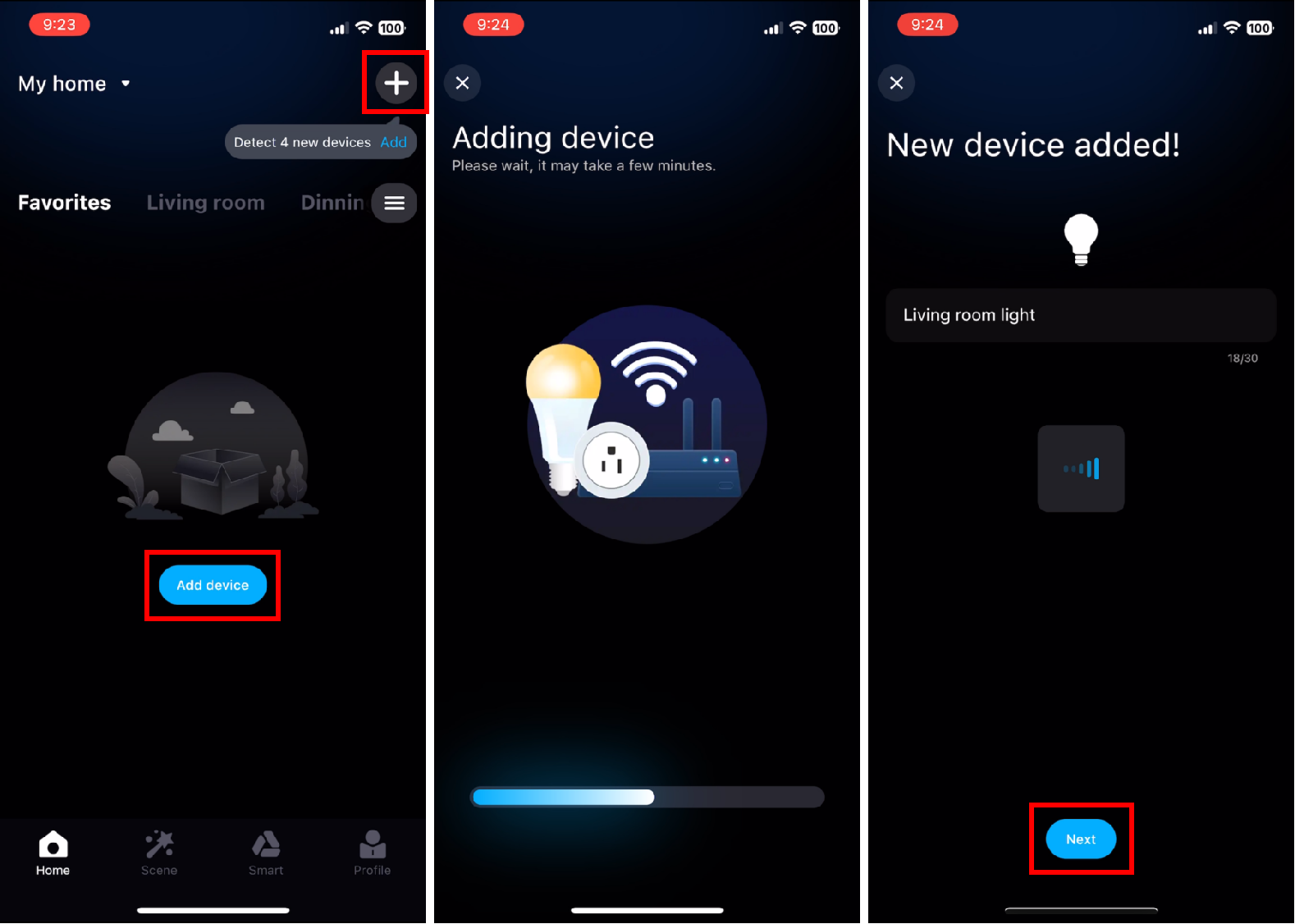
3. After adding the device, a pop-up window prompt "Quickly bind Amazon Alexa?" will pop up on the main page, click to proceed to bind,
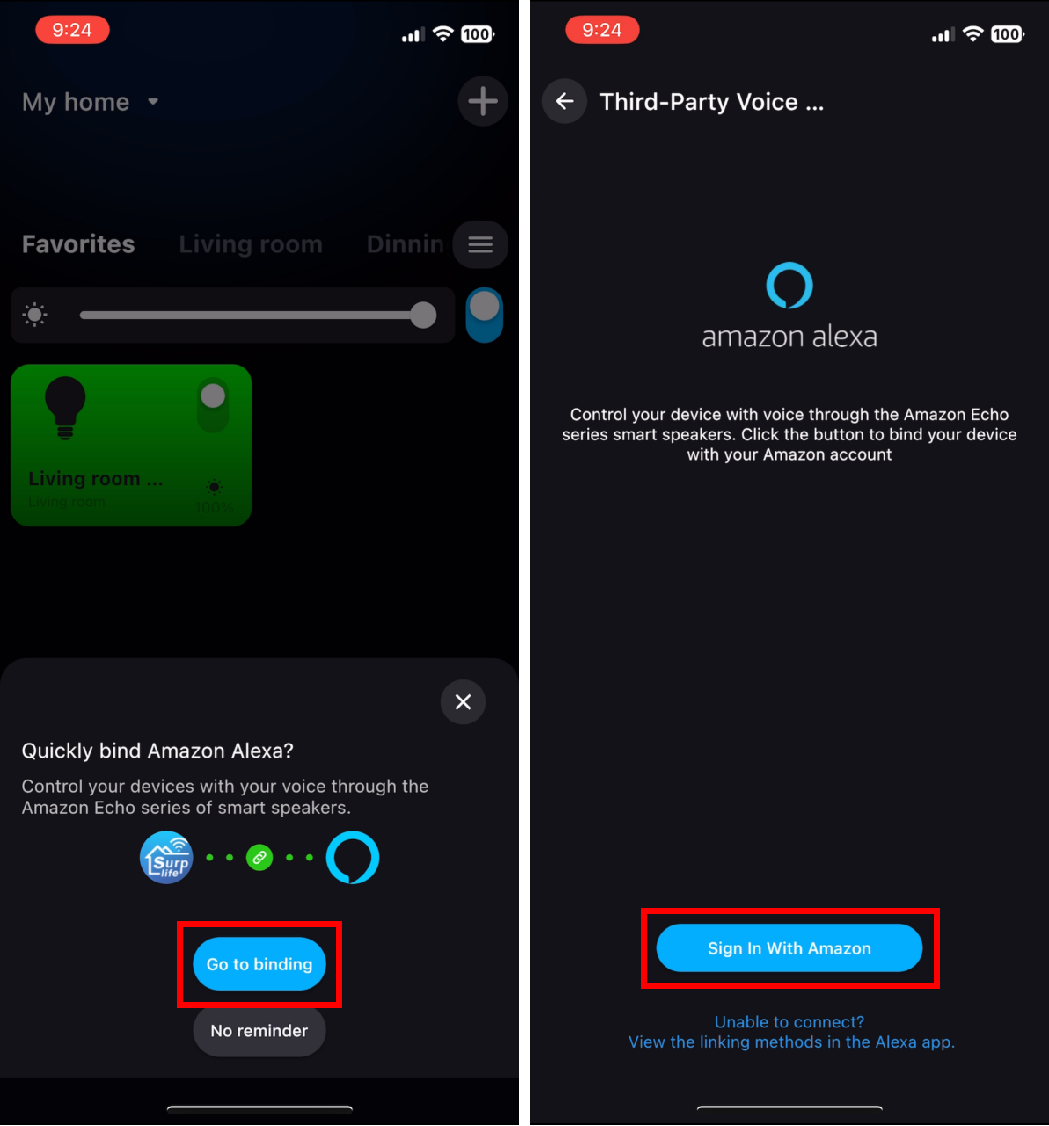
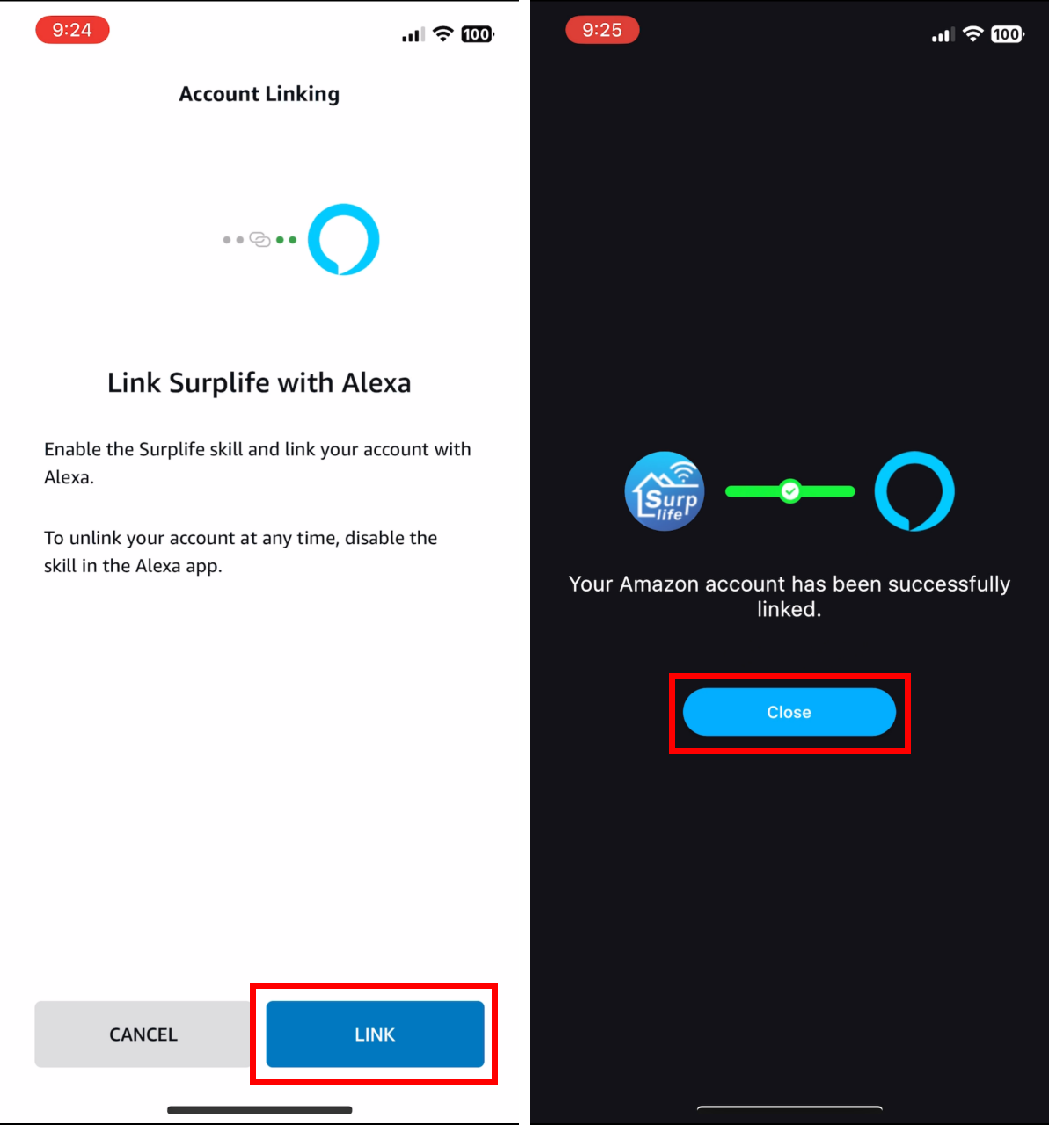
4. If your phone has installed the Alexa App, the page will automatically jump from the Surplife App to the Alexa App, click "LINK" to complete the binding.
Method 2: Search "Surplife" through the Alexa App to bind to Alexa
Please refer to the following configuration steps:
1.Add your device and modify the device name, make sure there is at least one smart light in the device list.
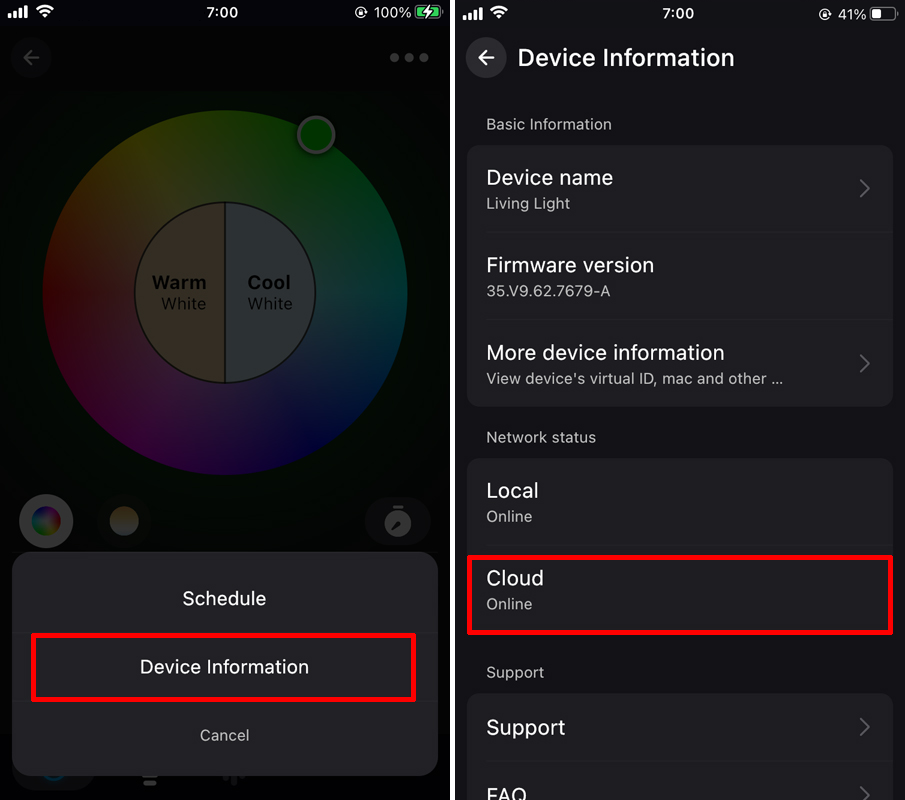
2.Check whether the device is remotely online.
Click the device icon to enterthe device control page; click "…" on the upper right to enter the “Device Information” page to check whether the remote cloud is online.
3.Start the Amazon Alexa App, click "More" and "Skills & Games", then click the search icon in the upper right corner.
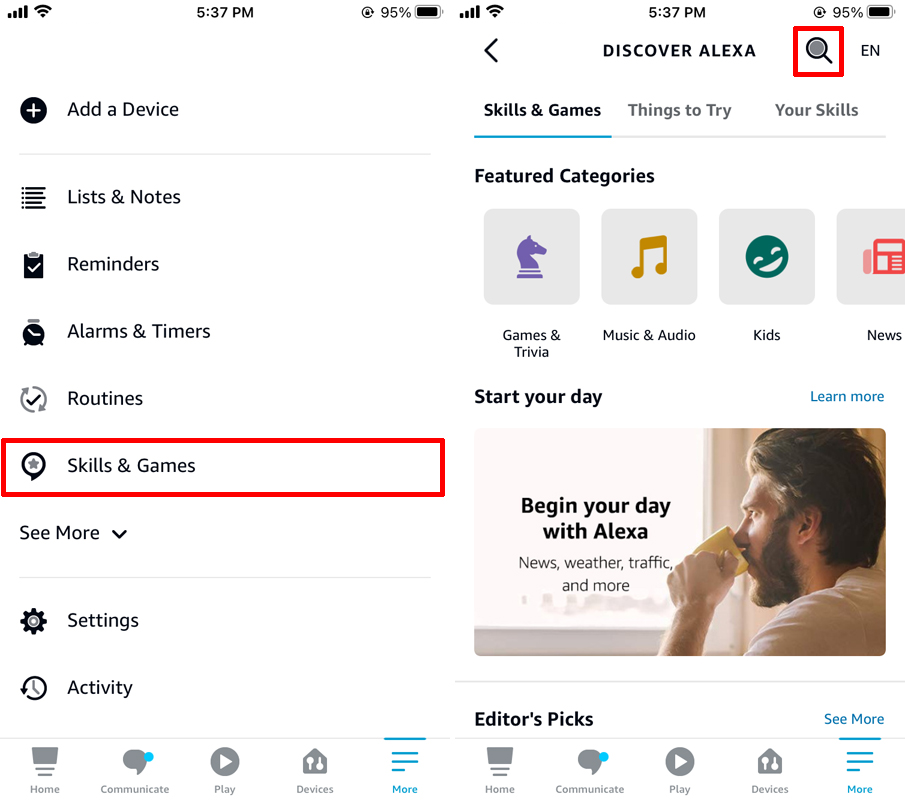
4.Enter "Surplife" and click "Surplife" and "ENABLE TO USE".
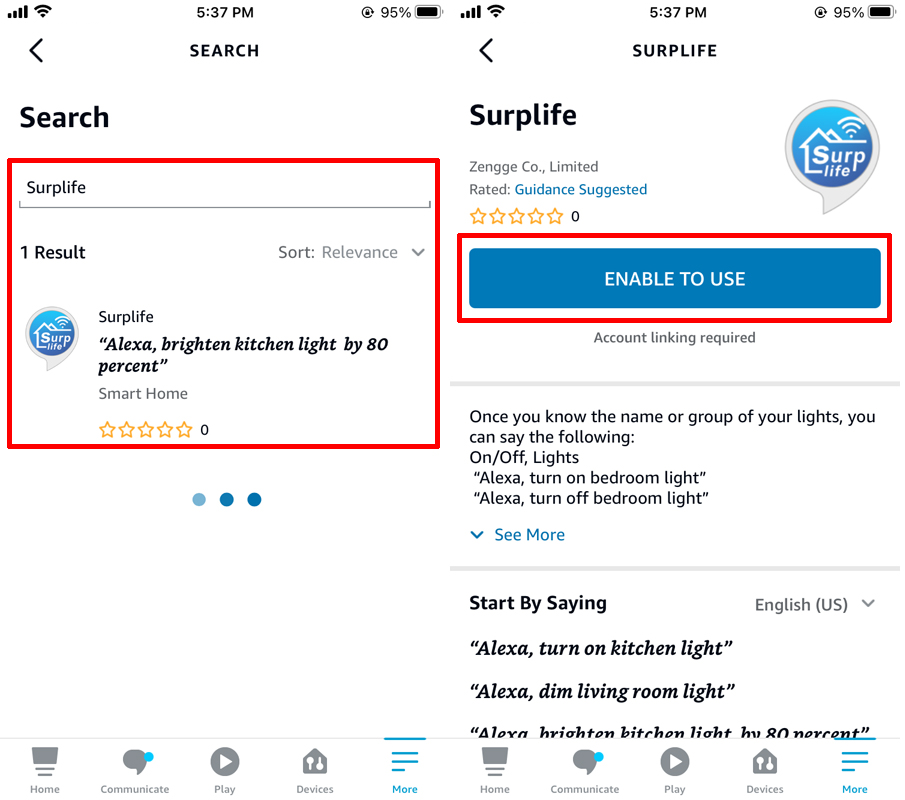
5. It will automatically jump to the Surplife APP, and then click "Agree and link";
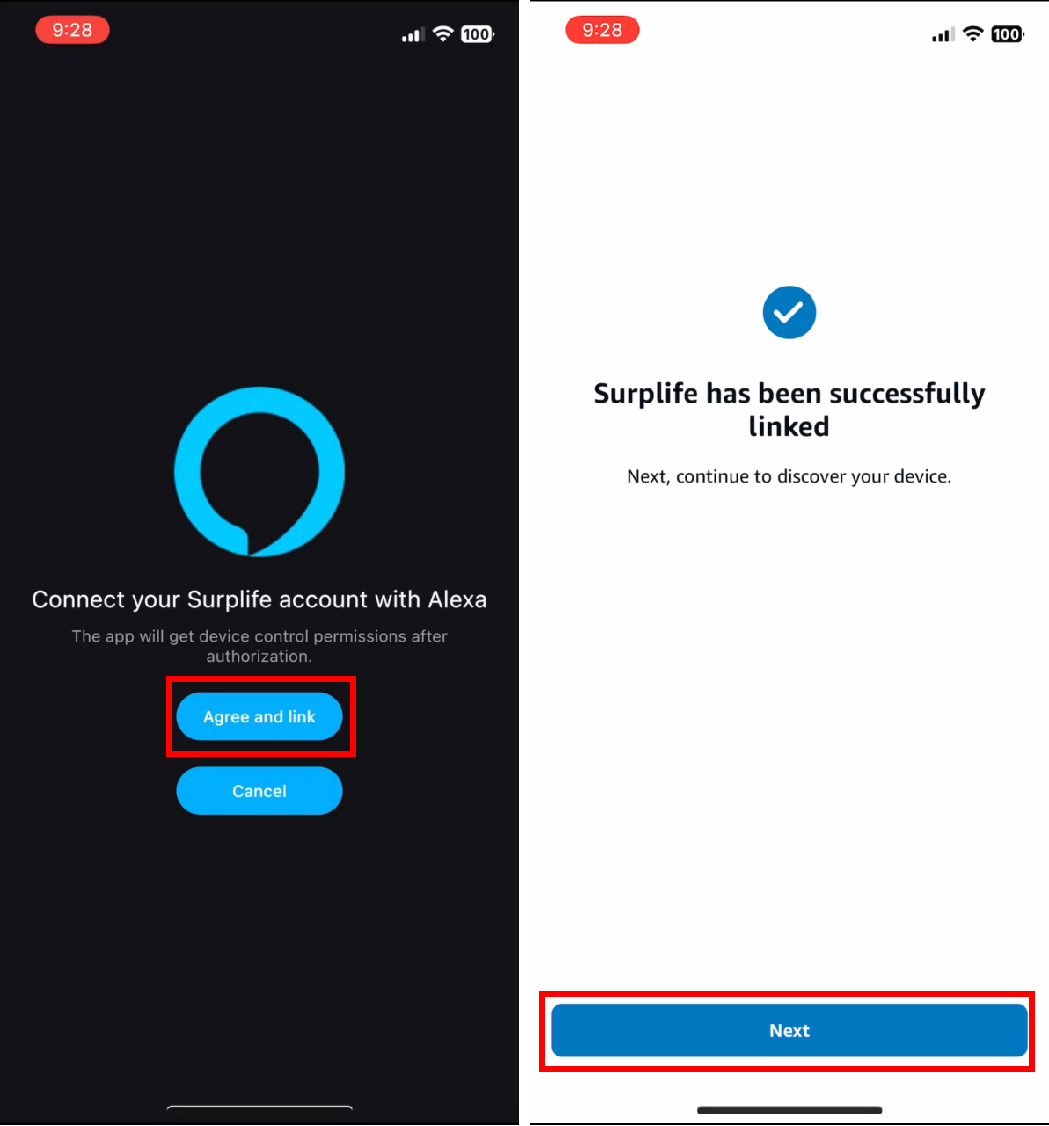
6.After successfully binding the account, the device will automatically sync to the "Devices"
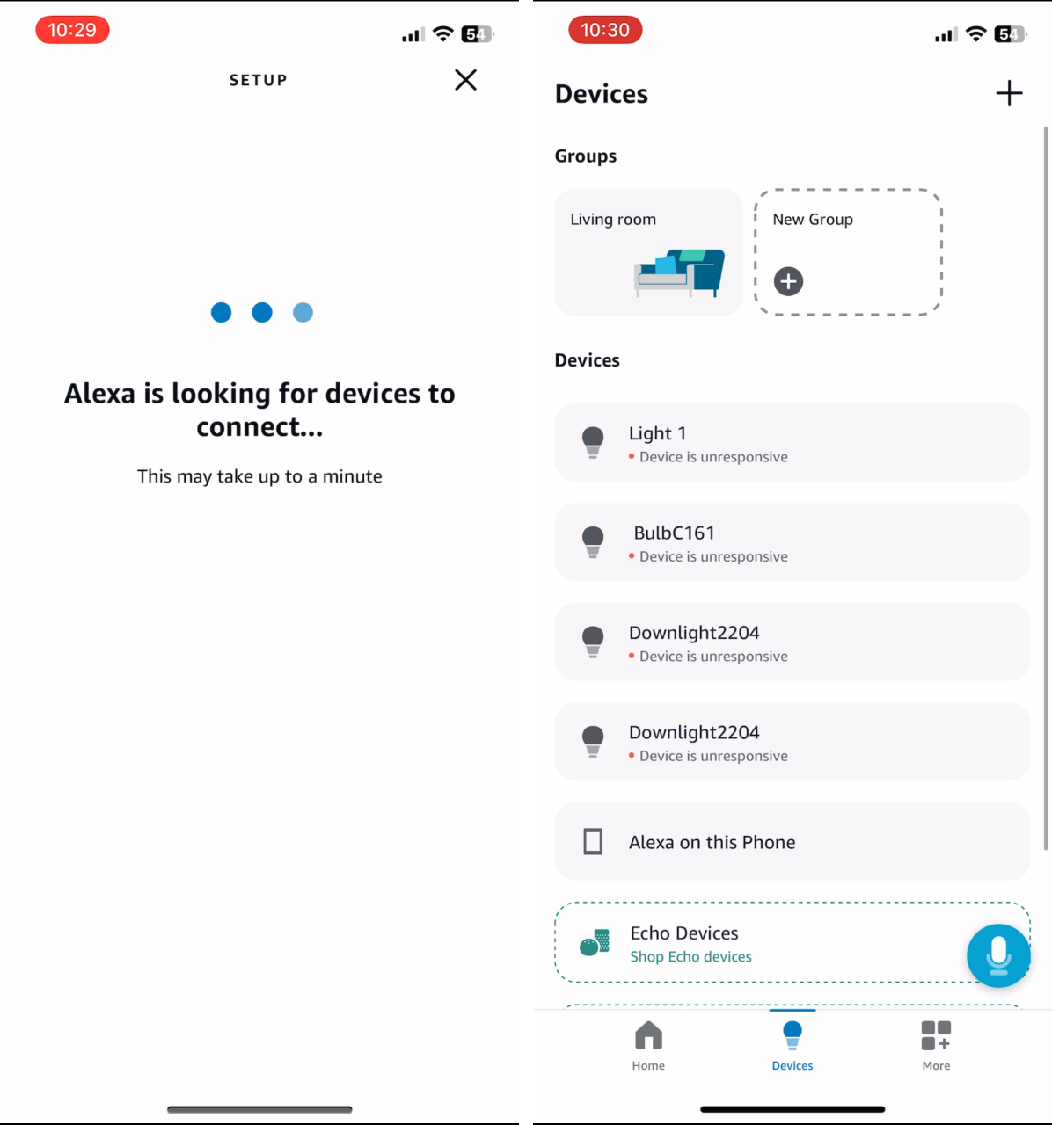
After completing the above operations, you can use Amazon Alexa for voice control.
Supported voice commands:
These are some of the currently supported Alexa voice commands for the smart light.
Alexa, set [light name] to [0-100]%
Alexa, turn on/off [light name]
Alexa, dim/brighten [light name]
Alexa, increase/decrease [light name]
Alexa, set the [light name] to red
Alexa, change [light name] to blue
For RGBW Light (Change to Warm White)
Alexa, set the [light name] to warm white
For CCT or RGBCW Light (Change to Color temperature)
Alexa, make the [light name] warm white
Alexa, change the [light name] to the cool white
Alexa, set the [light name] to daylight
Changing colors on your lights
Color Options for Alexa control of your smart device:
Blue, Crimson, Cyan, Fuchsia, Gold, Green, Lavender, Lime, Magenta, Orange, Pink, Purple, Red, Salmon, Sky Blue, Teal, Turquoise, Violet, Yellow
For Scenes
You can activate scenes by following voice commands:
Alexa, start {scene name}
Alexa, turn on {scene name}