
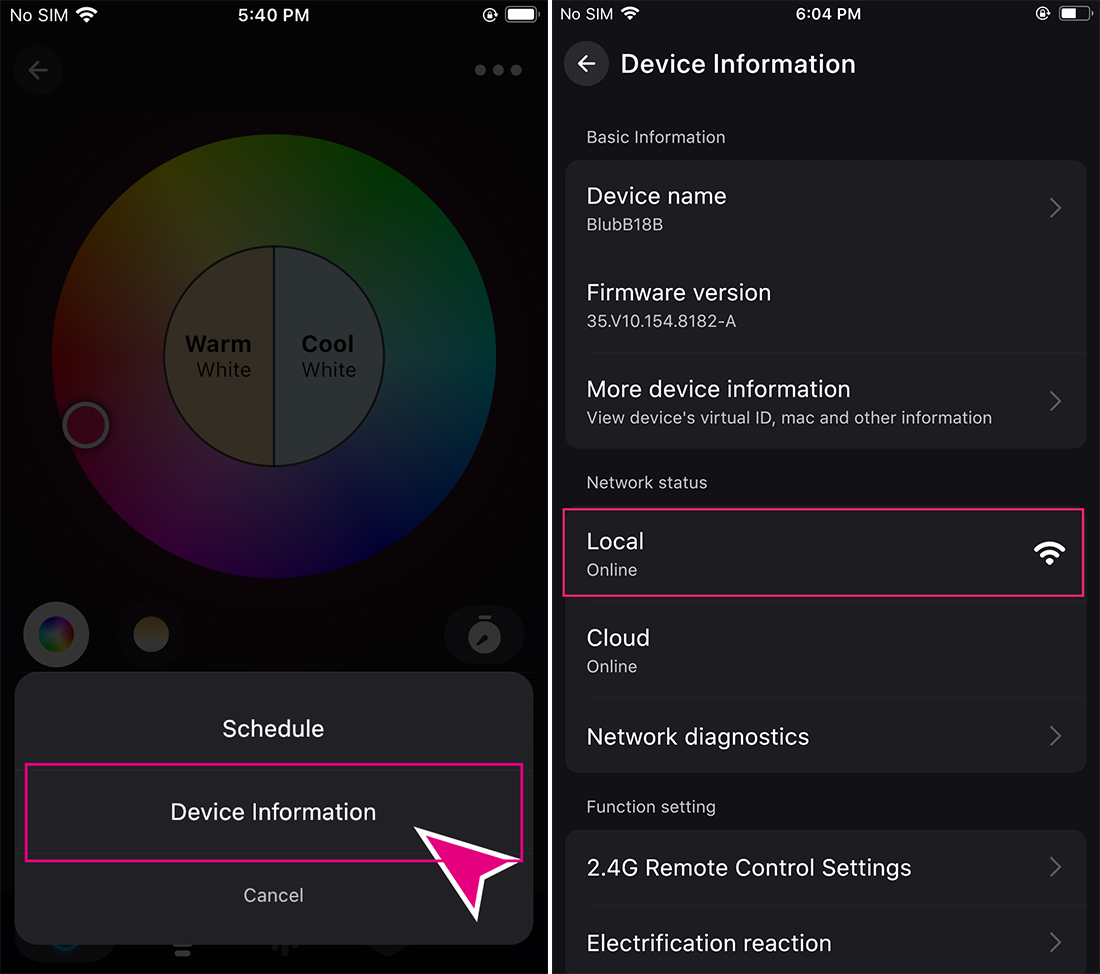
Note: Before using the music function, please make sure your device is "Local Online", otherwise the music function will be invalid.
If your device is not online locally, you can refer to "Why is the remote network online, but the local network is offline?”
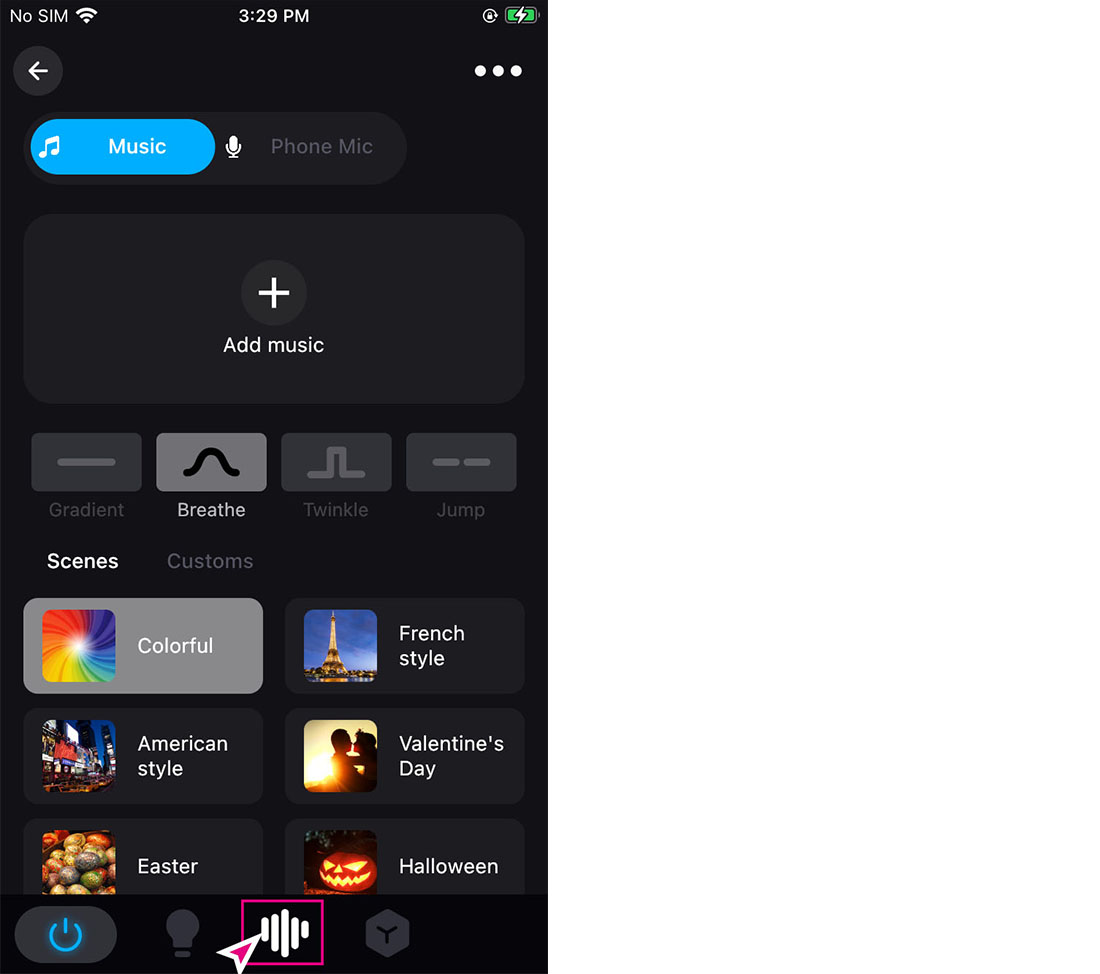
After importing the music, you can set the style and color of the device to rhythm with the music. You can choose four beating styles of "gradient", "fade in and fade in", "strobe" and "jump change", as well as various scenes of changing colors with the music, or you can automatically Define to add other beating colors;
Please refer to the following steps to set up:
1. Click the corresponding device on the main page of the APP to enter the device control interface, select the third icon at the bottom of the page, and enter the "Music Mode" page;
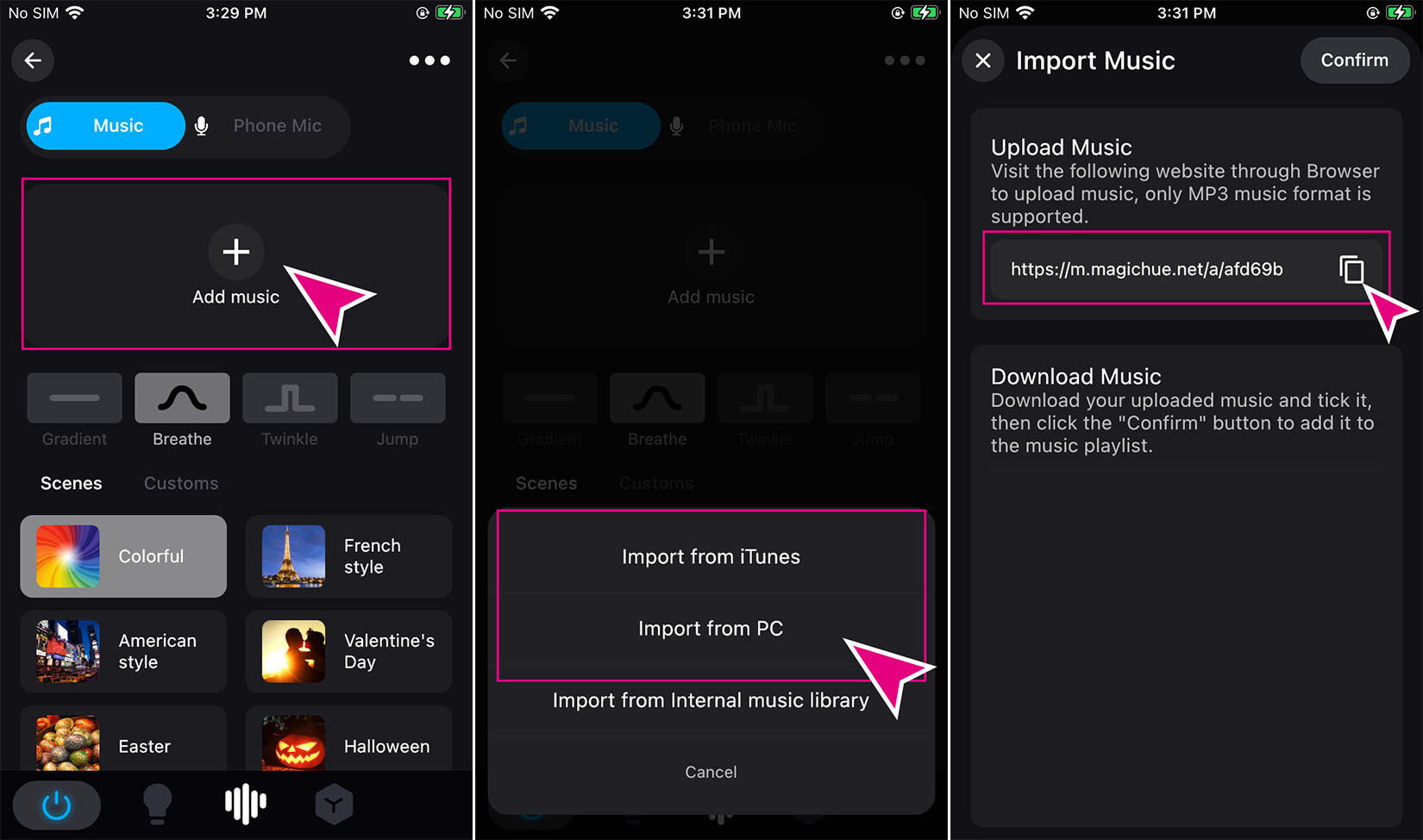
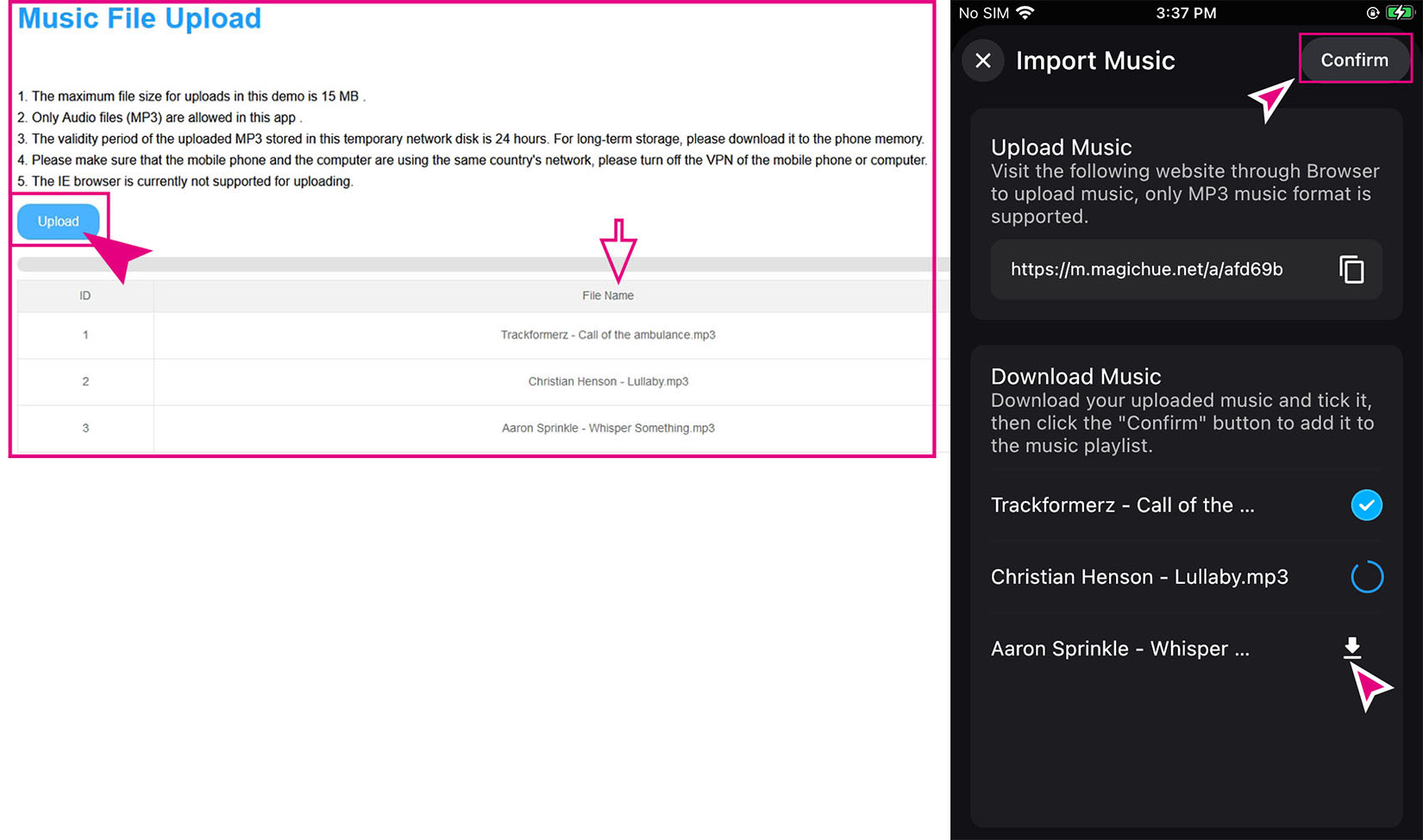
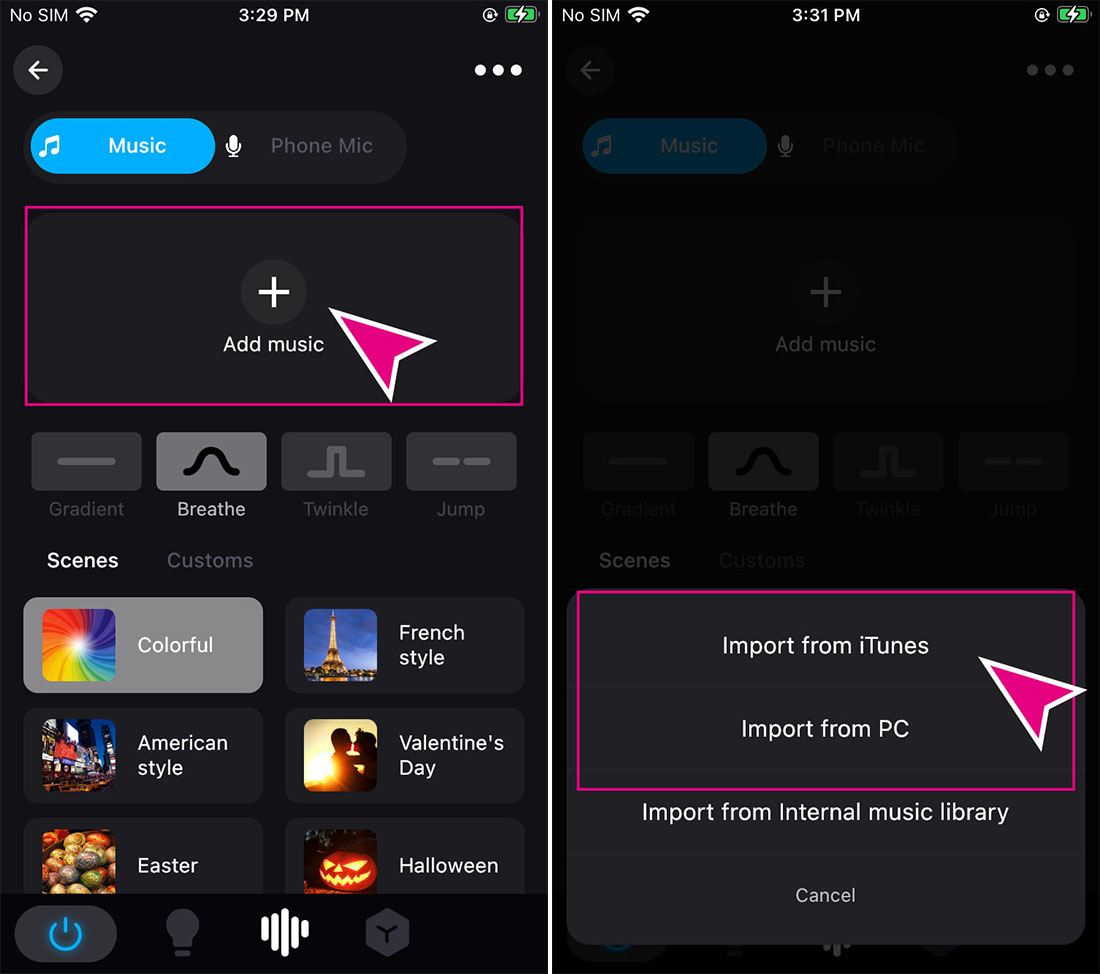
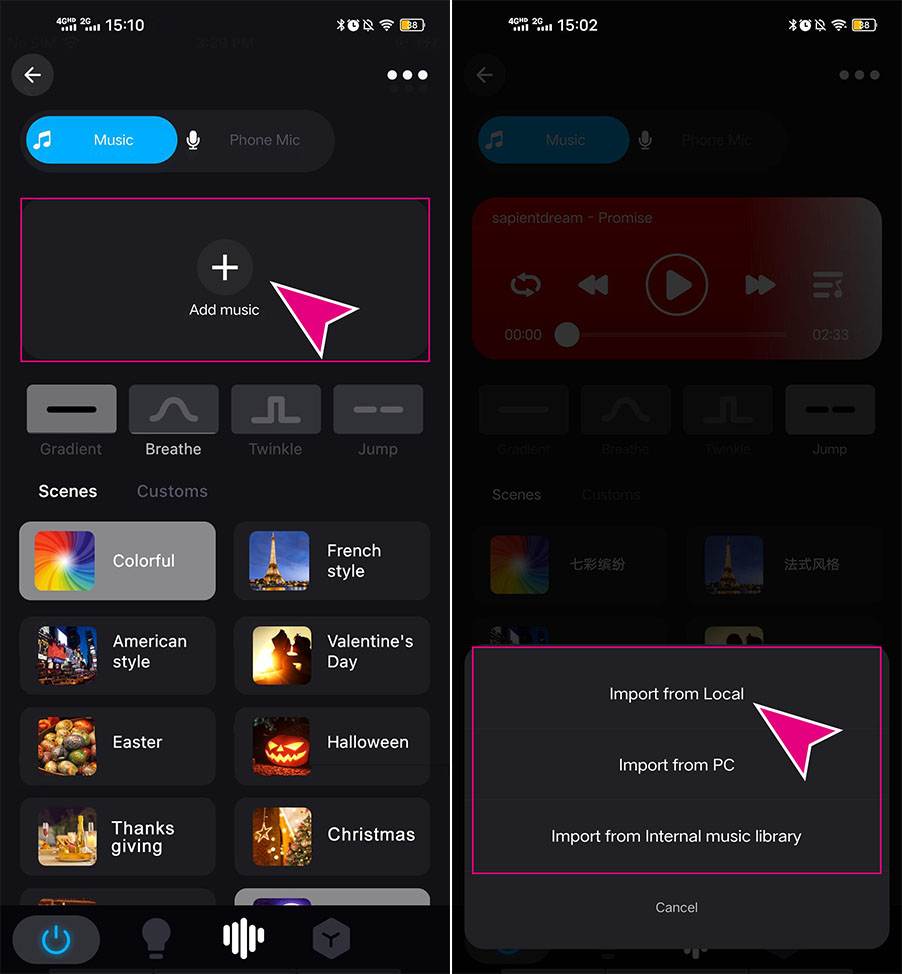
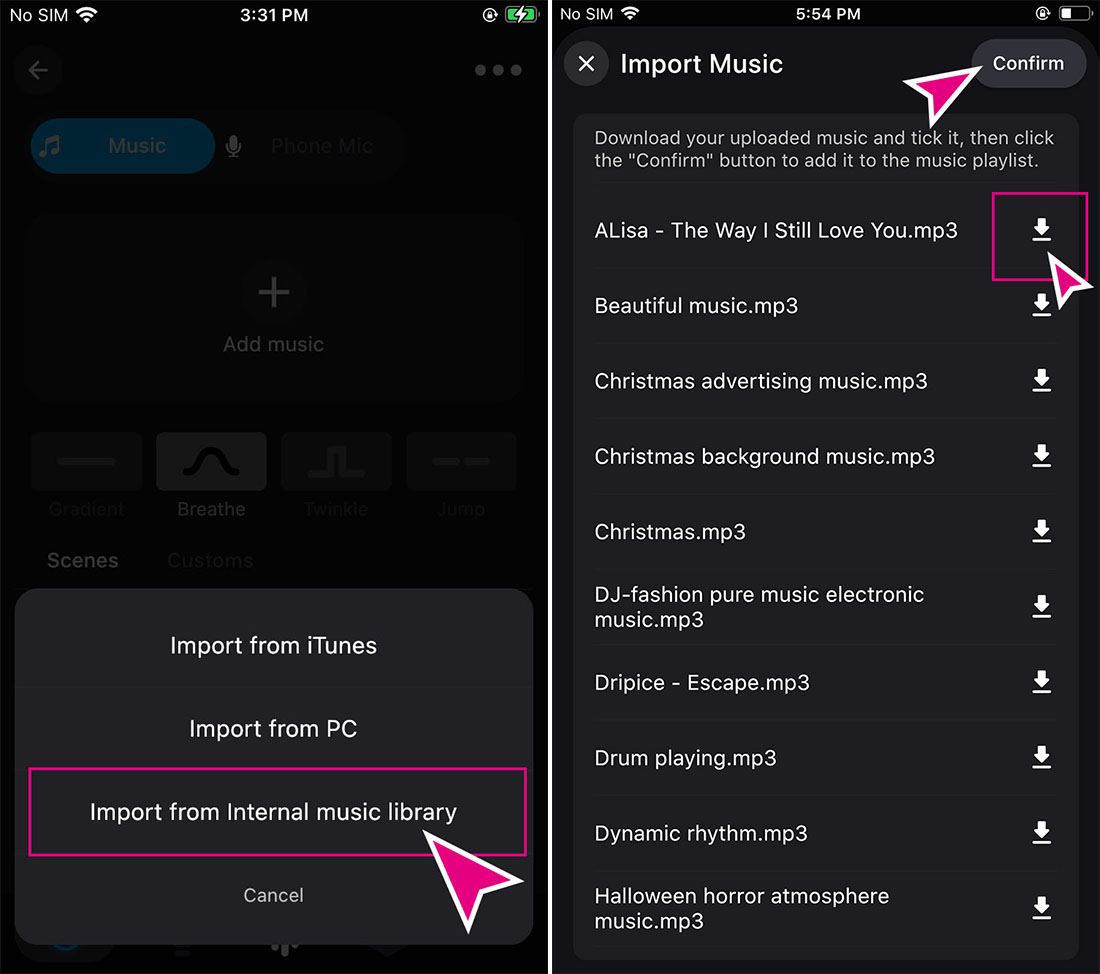
2. Upload your music files, click "+" to add music,you can choose to import music from “local”“PC”“internal music library”:
-Computer-
Import from PC:
-IOS-
Import from iTunes:
-Android-
Import from Local:
-IOS&Android-
Import from internal music library:
3. After successful addition, return to the music mode page, click the play music button, and observe whether the light beats with the rhythm of the music.