In order to use Google Home to control your smart device and perform voice control, please make sure you have logged in to your "Surplife" App account.
Please follow the steps below:
Step 1: Check whether the device is remotely online
Click the device icon to enter the device control page; click “ … “ in the upper right corner to enter the ” Device information ” page and check whether the remote " Cloud " is online, as shown in the figure:
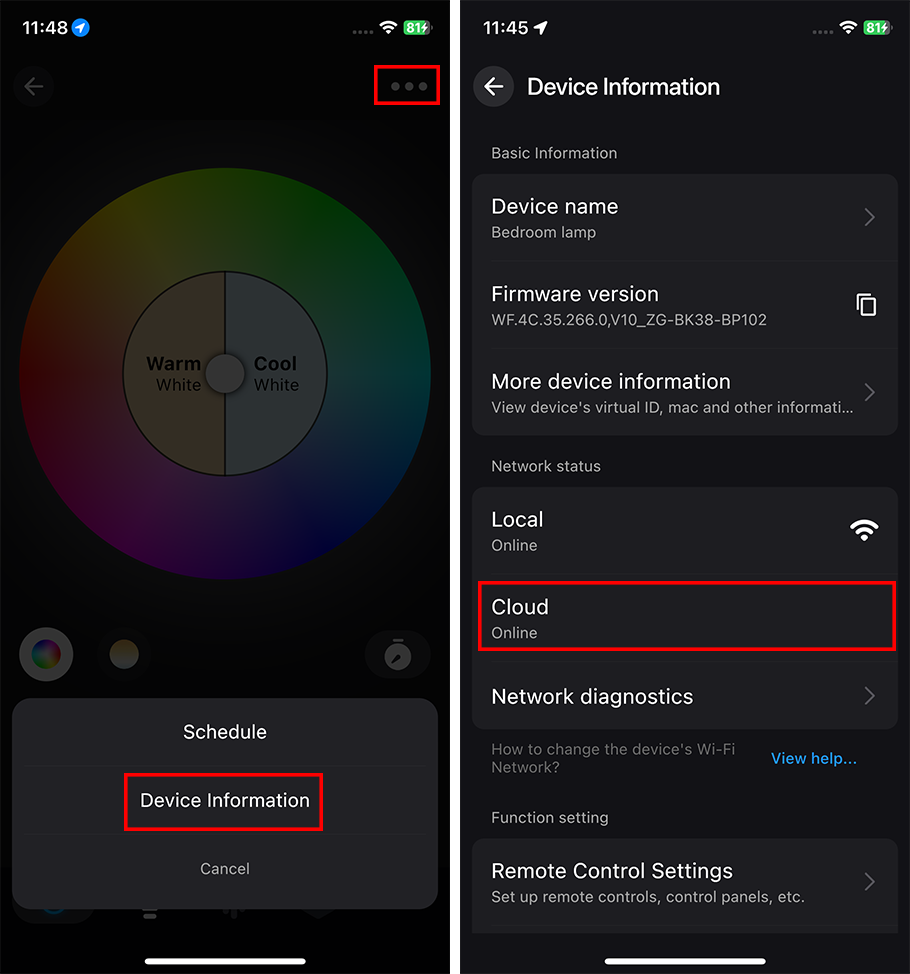
If the "Cloud" is not online, please refer to “ The smart device is remote offline, what should I do? ”for troubleshooting.
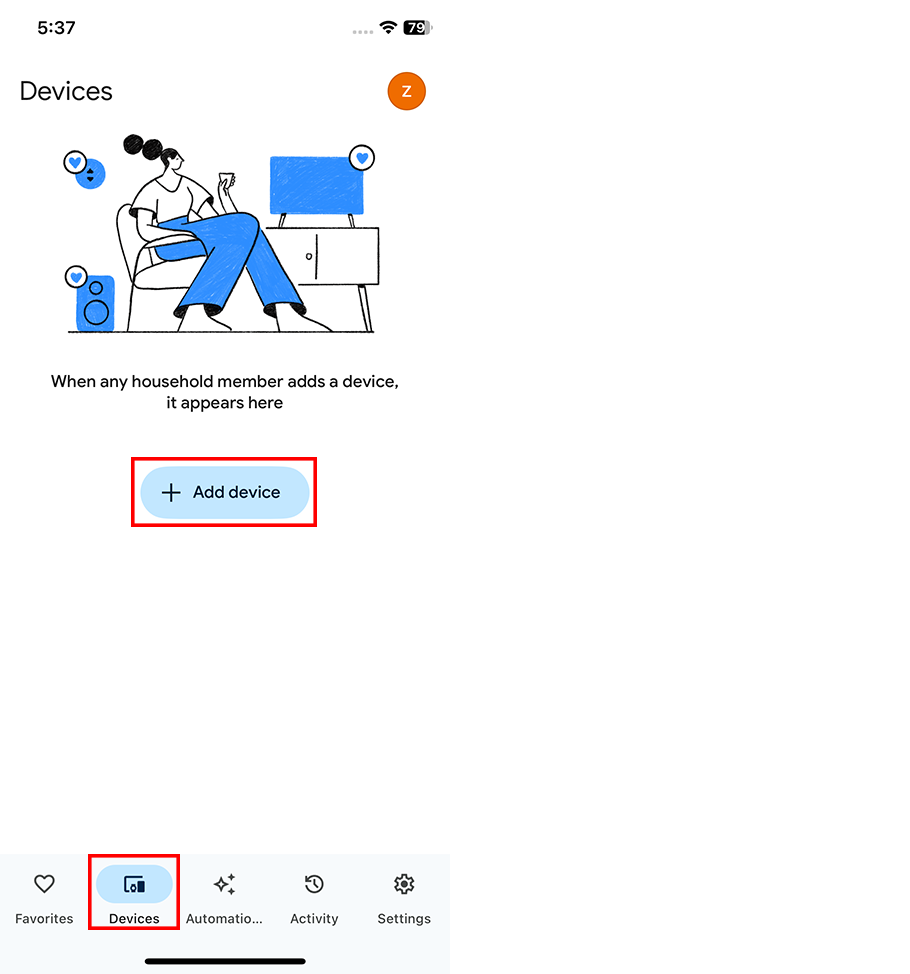
Step 2: Launch the Google Home App and tap “ + Add device ”.
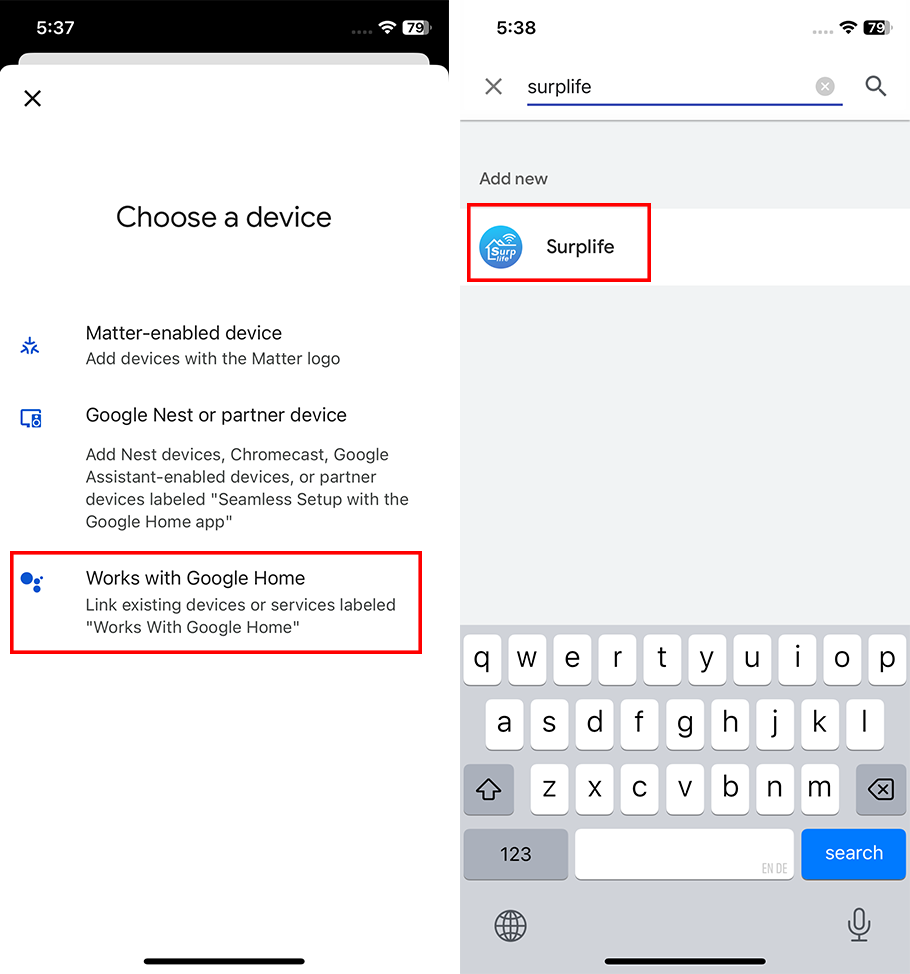
Step 3: Go to the Choose a device interface and click " Work with Google Home ". Search for " Surplife " and click on the searched " Surplife ".
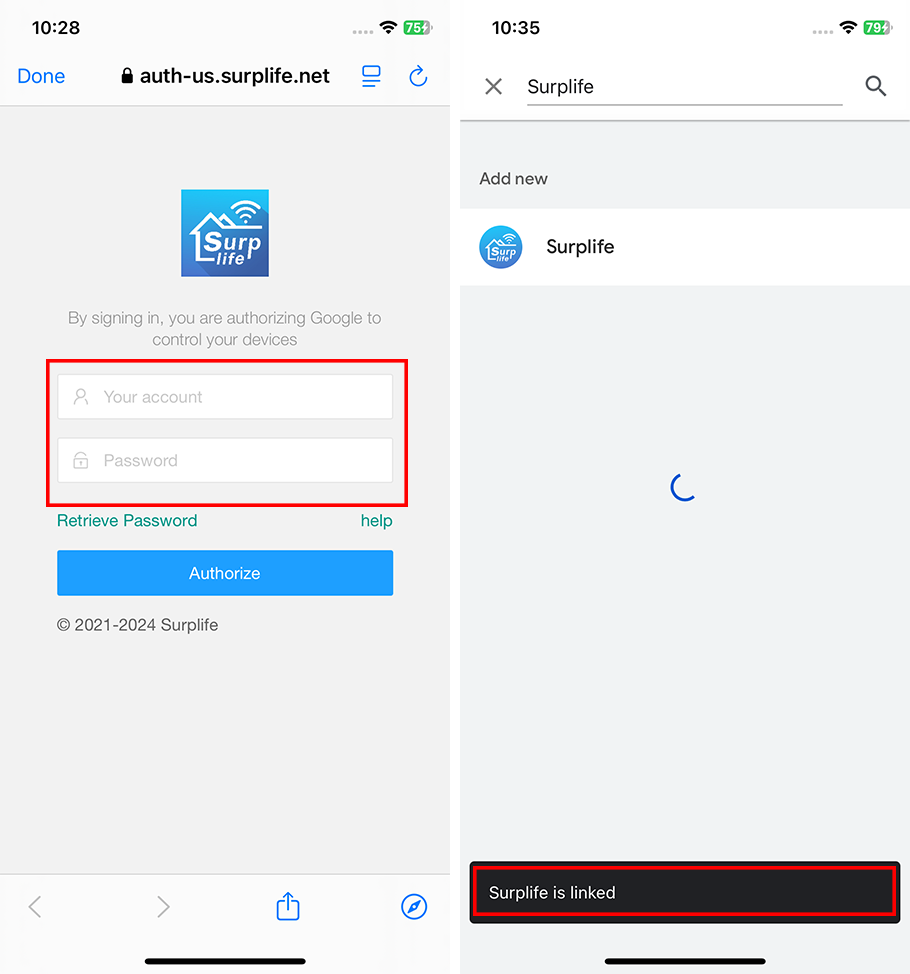
Step 4: It will jump to the “ Surplife ” login page, enter the " Surplife " App account and password and complete Surplife Linked.
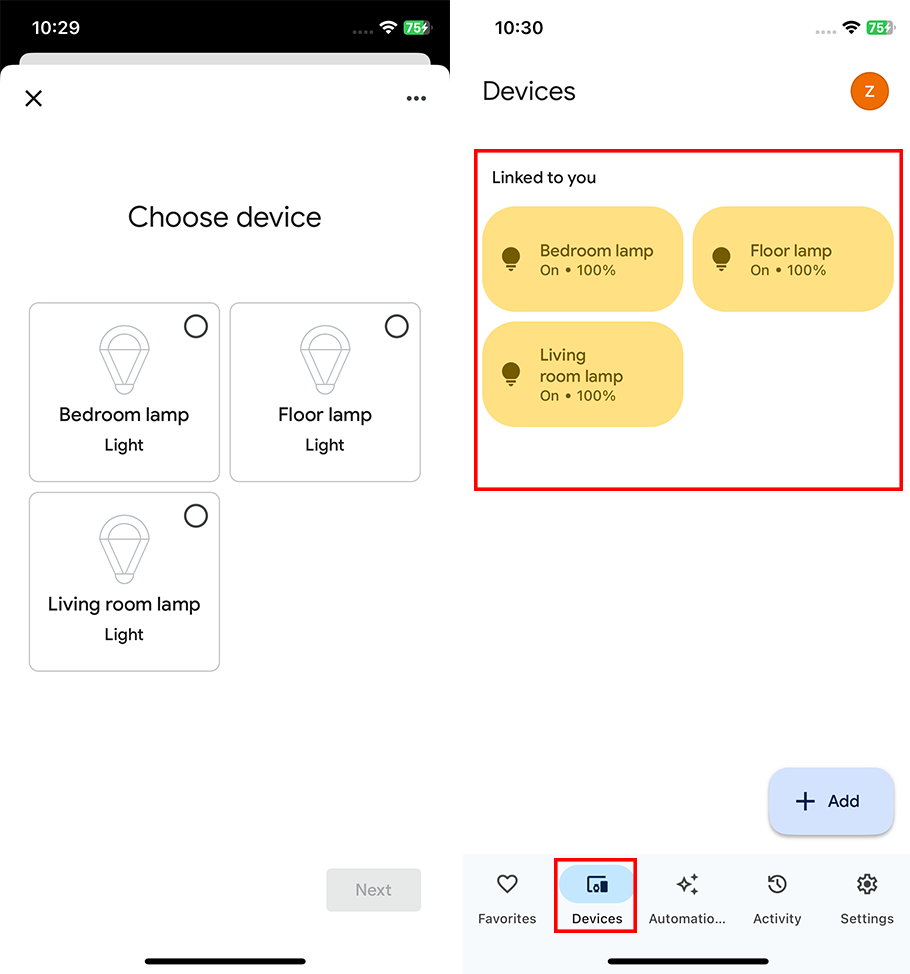
Step 5: After the binding is successful, all devices are displayed on the Google Home home " Devices " page.
After completing the above operations, you can use Google Home for voice control.
Supported voice commands:
• Turn on <light name>
• Dim <light name>
• Brighten <light name>
• Set <light name> to [50%]
• Dim/Brighten <light name> by [50%]
• Turn <light name> [color]
• Turn on/off all the lights
Changing colors on your lights
Color Options for Google Home control of your smart device:
Blue, Crimson, Cyan, Fuchsia, Gold, Green, Lavender, Lime, Magenta, Orange, Pink, Purple, Red, Salmon, Sky Blue, Teal, Turquoise, Violet, Yellow
For Scenes
You can activate scenes by following voice commands:
Hey Google activate {scene name}
Hey Google turn on {scene name}