Please follow the steps below to share Home Devices:
1. Confirm whether the current account and the family member "cloud server" belong to the same country.
Check the steps: Go to the App Home page, click "Profile" -> "Account and Security", if they are not the same, please switch to the same server (refer to How to switch cloud server?);
2. Generate a "Family QR Code".
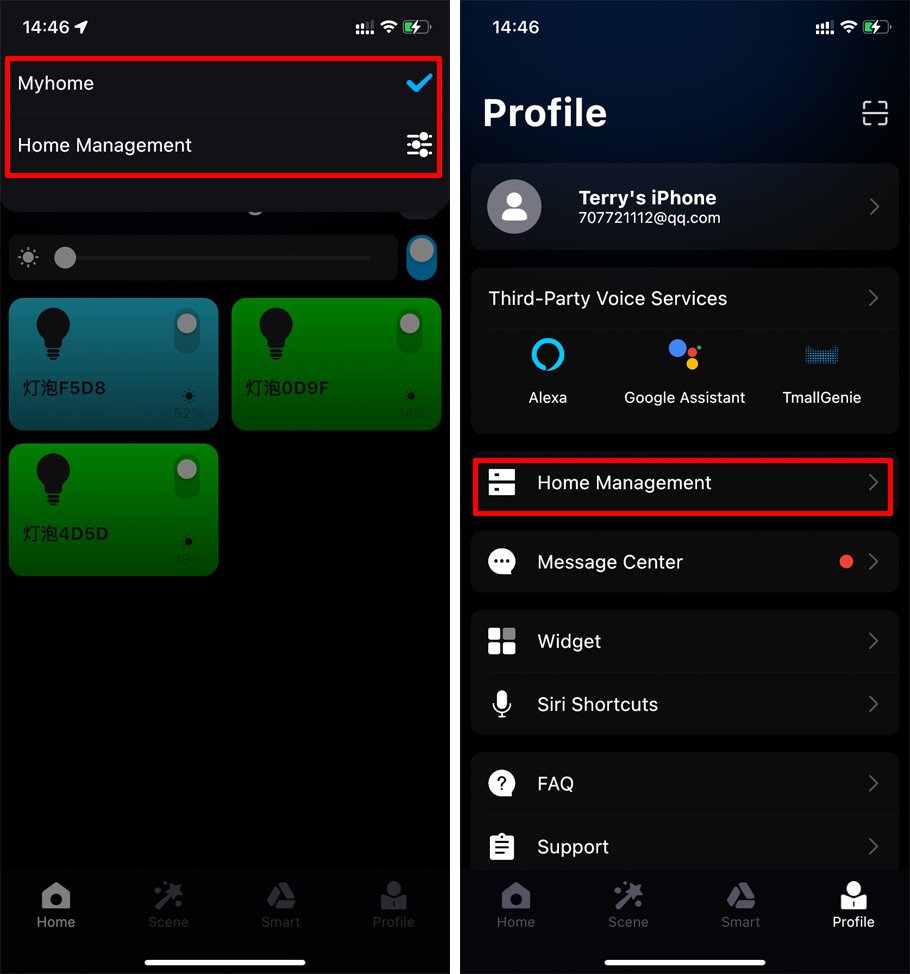
Step 1: Click "My Home" at the top left of the App Homepage or "Profile" at the top right to enter "Home Management";
Step 2: Click "My Home (Family to be Shared)" -> "Family QR Code" -> Generate "Family Invitation QR Code";
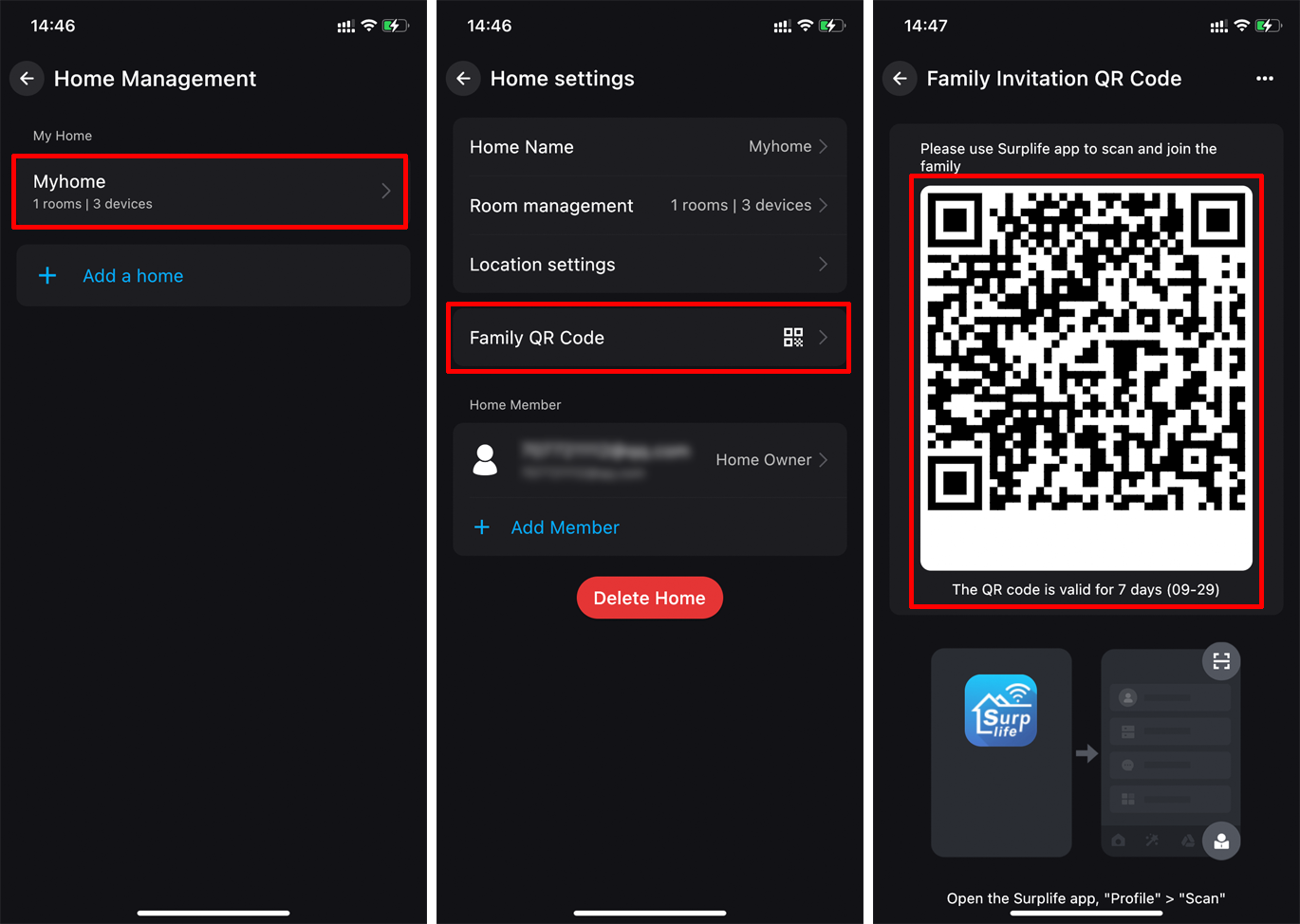
3. Scan the QR code
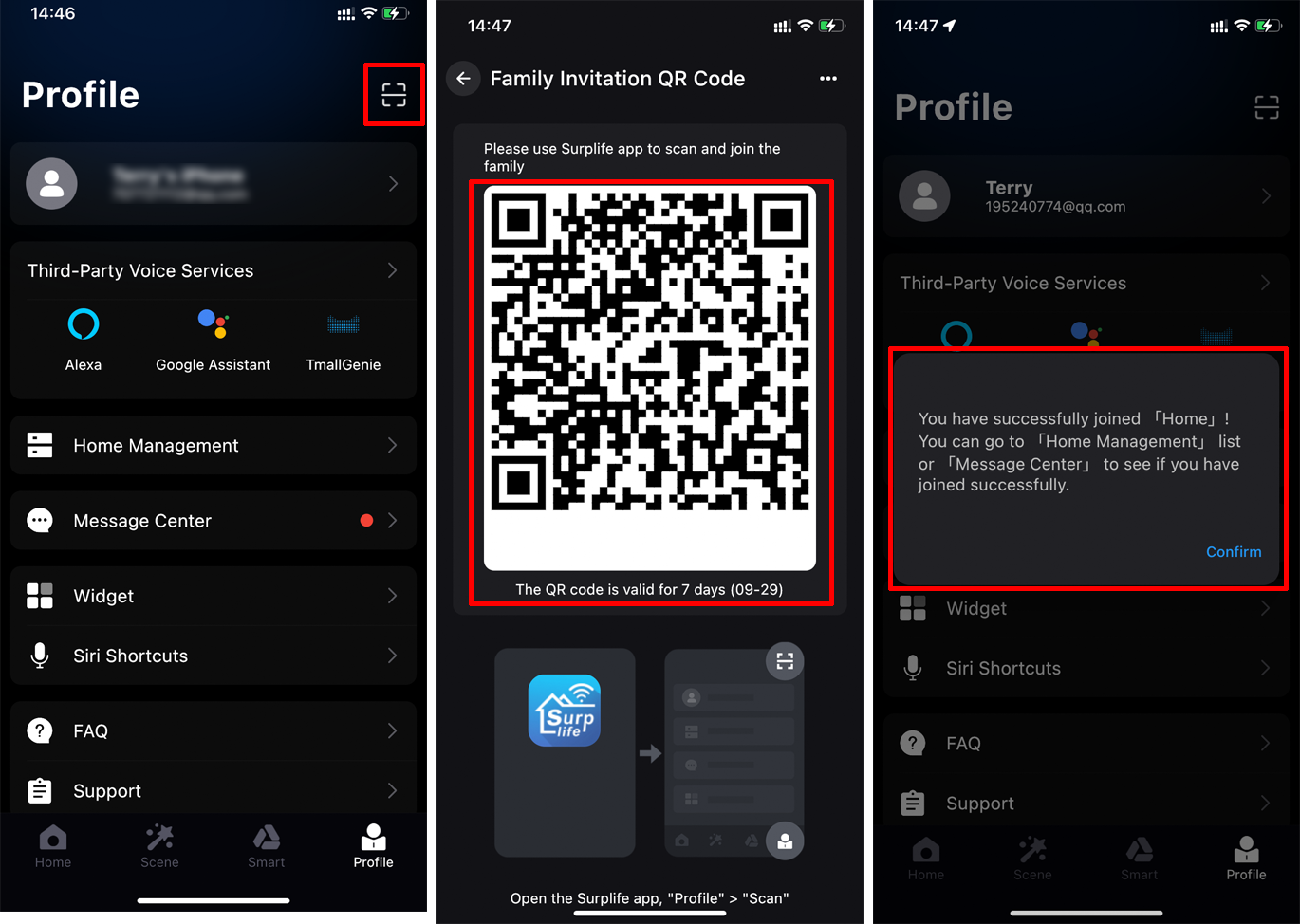
Use a family member's phone to open the Surplife App, enter "Profile", click the scan button on the upper right, scan the QR code, and then pop up a prompt to successfully join the "Home".
4. Family Adminstrative rights: Administrator and Common Member
Administrator: has the authority to manage the devices, rooms, smart and common members in the home, but needs to be restricted by the home owner.
Common Member: have the right to use devices and Smart, and cannot edit devices, rooms and Smart scenes.
If you need to change the adminstrative rights of family members, you can notify the Home owner to enter the adminstrative rights to make changes.