

Please follow the steps below:
1. First connect the device to the App successfully and keep it online;
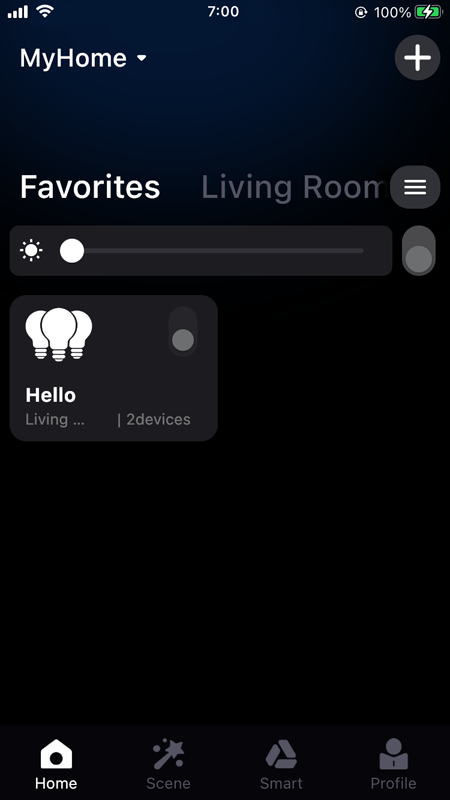
2. All devices are displayed in the device list on the App home page;
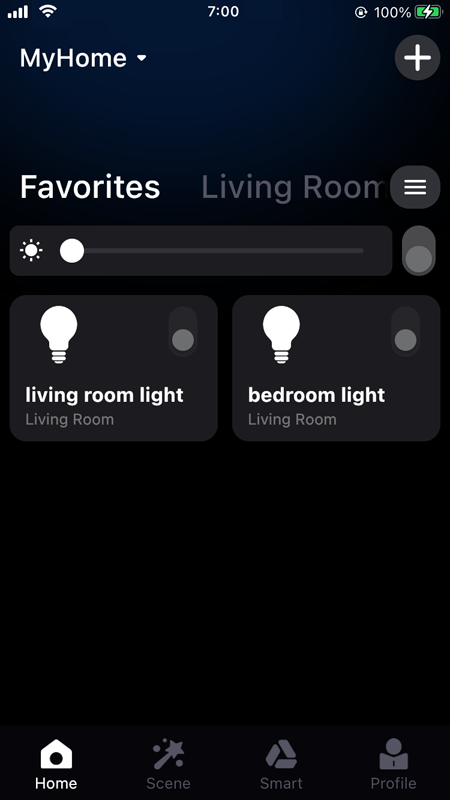
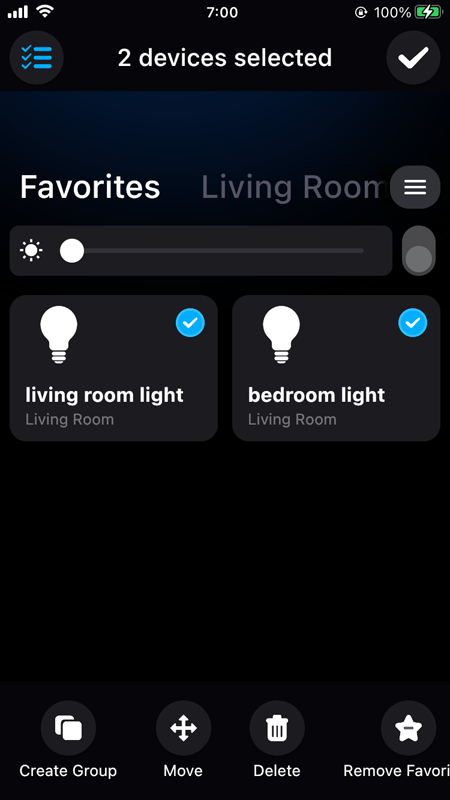
3. Long press the device icon, select the device you want to group (two or more), and in the pop-up menu, select "Create Group";
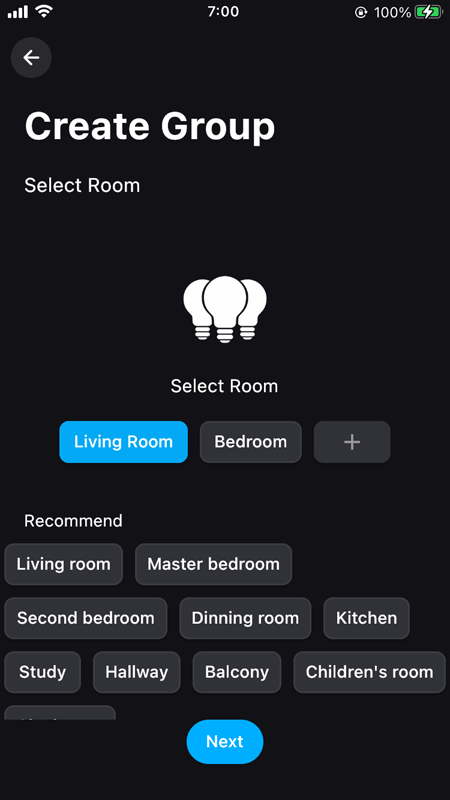
4. On the Create Group page, devices of the same device type are displayed, and only devices of the same device type can be grouped into the same group, select the room, and then click "Next";
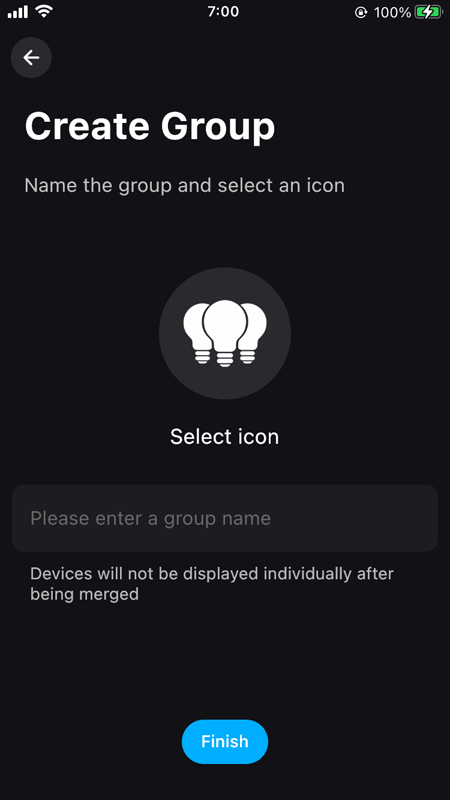
5. Name the group and select the icon, the group name must be within 20 characters;
6. Click "Finish", it automatically return to the main page of the App. Check all devices or click to open the group in the collapsed menu of the device to check whether the creation is successful.
Previous: How to remove a group device?
Next: How to delete the group?