
With Siri Shortcuts, you can use voice commands to quickly control the smart scenes you have created—for example, "Hey Siri, turn on the lights."
Before using Siri to control your devices, please ensure that the following requirements are met:
Since Siri control requires commands to be sent via the cloud, your smart device must remain online in the cloud.
Checking the device's network status:
Steps:
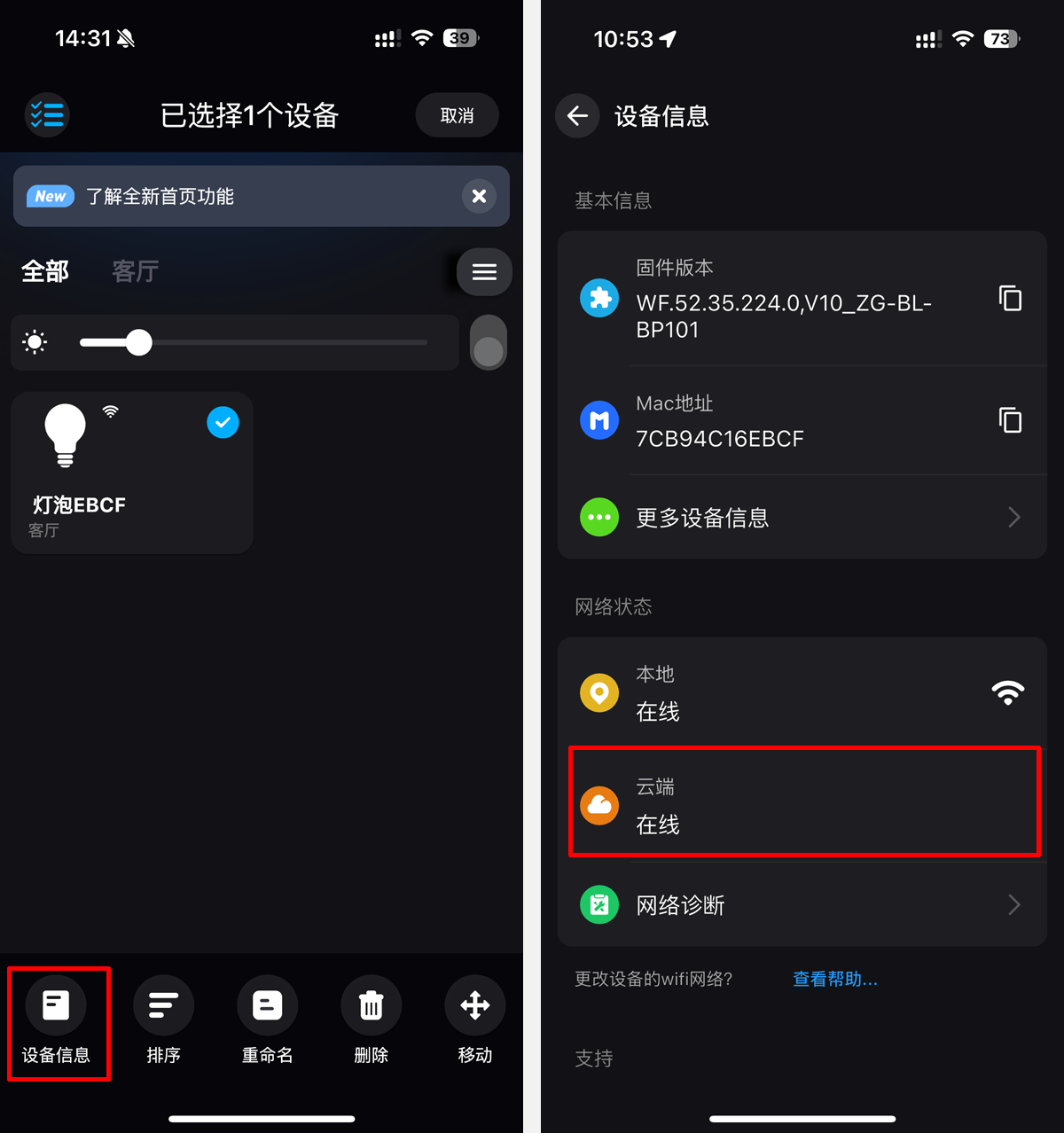
If your device shows as offline in the cloud, please refer to "How to troubleshoot when a smart device appears offline remotely."
Once the device is back online, you can proceed with setting up Siri Shortcuts.
Go to the "Feature Center" in the app to create smart scenes that you wish to control via Siri.
Create a custom scene:
Tap "Create," then configure the device states according to your needs—for example, by adjusting light colors, brightness, etc.
Use recommended scenes:
Go to "My Recommendations" and select one of the preset smart scenes provided by the app to quickly set up your scene.
Once a scene has been created, please verify that it functions correctly.
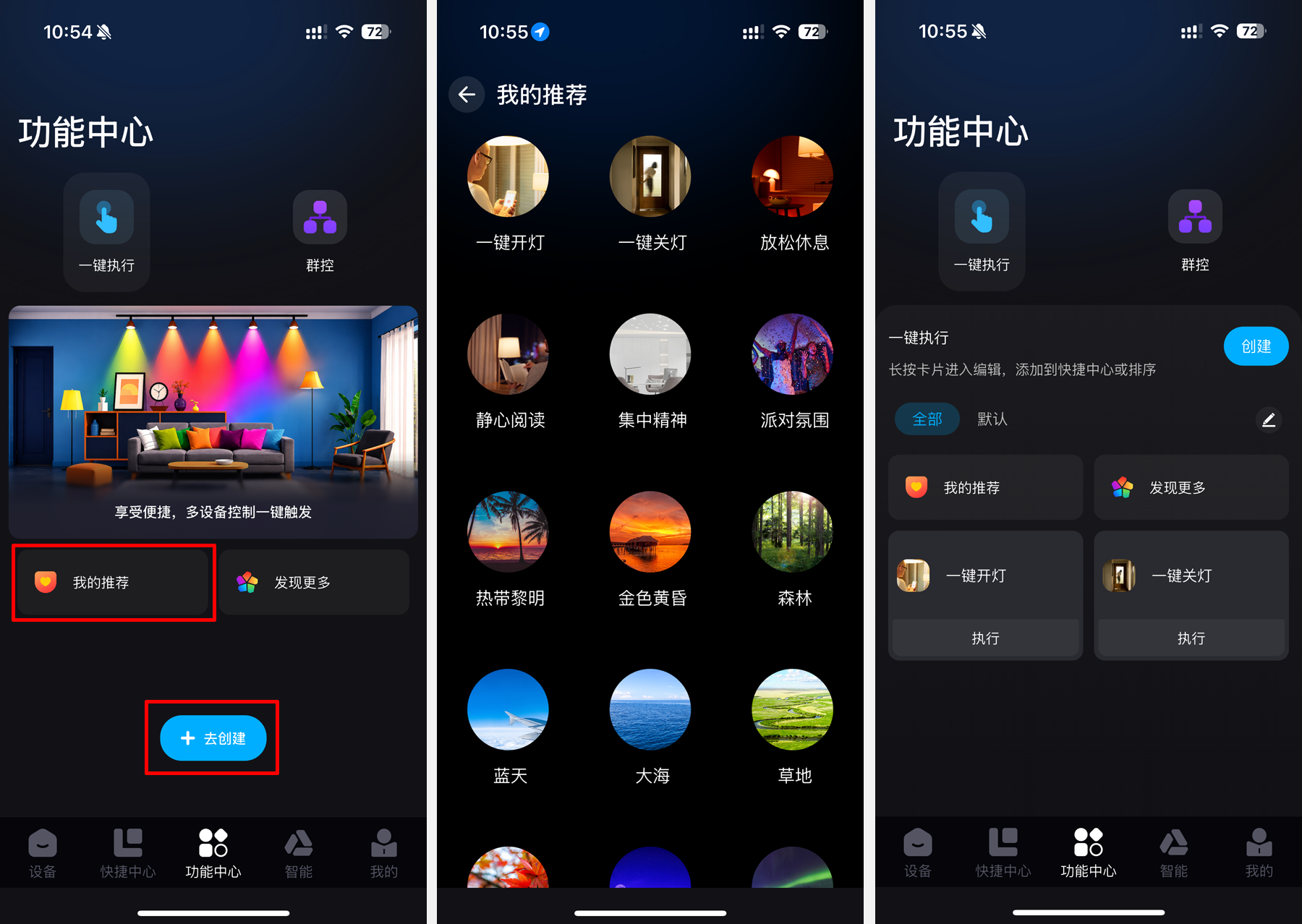
Steps:
Once the scene is added, follow the on-screen prompts to set up the Siri shortcut.
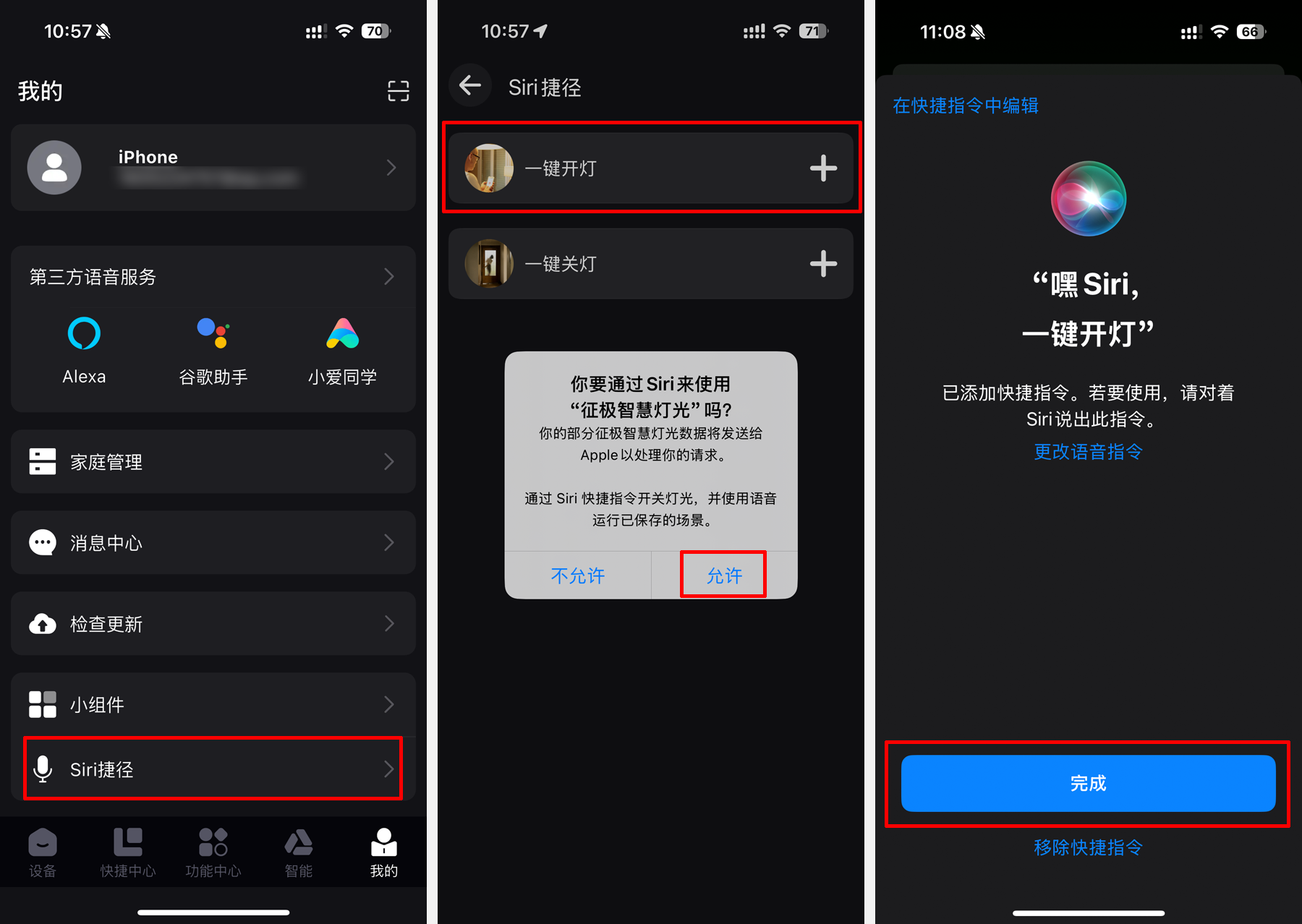
Once setup is complete, simply activate Siri and say the shortcut command you’ve configured.
For example: